Showing posts with label Firefox web browser. Show all posts

Thursday, November 22, 2007

Memory test - Firefox 2.0.0.9 vs Firefox 3.0 b 1

Does Firefox 3.0 beta 1 do a better job of handling memory than earlier versions? In a test put Firefox 3.0 beta up against Firefox 2.0.0.9 in a series of tests.

Before I go any further, a few disclaimers and notes. First off, I’ve carried out this test on a single system running Windows Vista Home Premium on which Firefox had not been previously installed. The system has 2GB of RAM. Both Firefox 2.0.0.9 and Firefox 3.0 b 1 were installed fresh using a standard install. For each test I visited the same web pages and did my best to make the browsing the same on both versions.

OK, with that out of the way, on with the tests. I simulated three different browsing scenarios:

  • Loading a five pages into the browser
  • Loading a single page and leaving the browser for 10 minutes
  • Loading 12 pages into the browser and wait 5 minutes

Here are the results:

Firefox 2.0.0.9

  • The memory test - Firefox 2.0.0.9 vs Firefox 3.0 b 1Loading a five pages into the browser - 35,640KB (img)
  • Loading a single page and leaving the browser for 10 minutes - 47,852KB (img)
  • Loading 12 pages into the browser and wait 5 minutes - 103,180KB (img)

Firefox 3.0 b 1

  • Loading a five pages into the browser - 38,644KB (img)
  • Loading a single page and leaving the browser for 10 minutes - 63,764KB (img)
  • Loading 12 pages into the browser and wait 5 minutes - 62,312KB (img)

Check out the complete screenshot gallery.

Just to give us a baseline, I repeated the 12 page test using Internet Explorer 7 and found that the browser used 89,756KB (img), more than Firefox 3.0 beta 1 but substantially less than Firefox 2.0.0.9.

This is interesting. Initially it seemed that Firefox 3.0 beta 1 was consuming more memory than 2.0.0.9, but during the twelve page test I started seeing what I’ve been seeing before - spiraling memory consumption when the browser is under significant load. I’m certain that if the browser had been left open longer, memory usage would have continued to rise. I didn’t see much signs of Firefox 3.0 beta 1 doing this. Certainly based on this test and from using Firefox 3.0 beta 1 today, I do think that things have significantly improved.

Anyone else taken Firefox 3.0 beta 1 for a spin? Any thoughts, feelings or observations?

Tuesday, October 9, 2007

Firefox web browser | Features: Faster, more secure, & customizable

Firefox 2

The award-winning Web browser from Mozilla is now even faster, more secure, and totally customizable to your online life.

Features

Enjoy a Better Web Experience

There’s a lot to do on the Web, and Firefox 2 is full of helpful features to make your time online more productive.

Improved Tabbed Browsing

Tabbed Browsing screenshot

We love tabs as much as you do, so Firefox 2 will open new web pages in tabs by default. Each of those tabs has its own close button, but don’t worry - if you accidentally close a tab, just go to the History menu to bring it back from the list of “Recently Closed Tabs.” You’ll never be crunched for space anymore, either. When you have too many tabs open to comfortably fit in a single window, scroll arrows will appear on either side, and a button on the right side will always show you an easy-to-read list of all your open tabs.

Spell Checking

Spell Checking screenshot

Sometimes you’re in a rush, and can’t remember if it’s “i” before “e” or the other way around. Firefox 2 has built-in spell checking to keep you from making any mistakes in your blog posts and Web-based email, so you can worry about more important things.

Search Suggestions

Search Suggestions screenshot

Some of the search engines in Firefox 2 can read your mind, and actually suggest search terms for what you’re looking for. Just start typing into the Search bar, and a drop down list of suggestions will appear. (Works for Google, Yahoo! and Answers.com.)

Session Restore

Losing your place while you’re doing things on the Web is a pain. Now, with Session Restore, if Firefox has to restart or closes when it comes back you’ll pick up exactly where you left off. The windows and tabs you were using, the text you typed into forms, and the in-progress downloads you had running will all be restored. You can even set Firefox 2 to always restore your previous session instead of loading a home page, so you’ll never lose your place again.

Web Feeds (RSS)

Web Feeds (RSS) screenshot

What do news headlines, indie rock podcasts, and pictures of kittens have in common? They’re all things that you can subscribe to with Web feeds. Firefox 2 gives you full control over Web feeds, showing you a preview and letting you choose how you want to subscribe. You can use a Firefox Live Bookmark, or a feed reader that you’ve installed on your computer, or through a Web service such as My Yahoo!, Bloglines or Google Reader.

Live Titles

Live Titles screenshot

Keep an eye on that auction or the status of a delivery using the new Live Titles feature in Firefox 2. Compact enough to fit as a bookmark label, Live Titles are regularly updated summaries of the most important information on a Web page. As the information on the page gets updated, so does your Live Title. Try one out in Firefox 2 by bookmarking www.woot.com.

Integrated Search

Integrated Search screenshot

Firefox helps you find whatever it is that you’re looking for. The Search bar comes pre-loaded with search engines for Google, Yahoo!, Amazon, eBay, Answers.com, and Creative Commons. Wherever you are on the Web, you can enter a search term in the Search bar and receive immediate answers from the search engine you’ve chosen. You can select a new search engine from the Search bar menu at any time, and add search engines from hundreds of your favorite Web sites.

Live Bookmarks

Live Bookmarks screenshot

Firefox Live Bookmarks let you view Web feeds such as news and blog headlines in the bookmarks toolbar or menu. With one glance, quickly review the latest headlines from your favorite sites and click to go directly to the articles that interest you.

Pop-up Blocker screenshot

Firefox keeps you in control of the Web pages you’re viewing, blocking annoying pop-ups. Firefox’s pop-up blocker notifies you when pop-ups are blocked via the information bar or icon on the lower right of the screen.

Streamlined Interface

The user interface in Firefox 2 has been updated to improve usability without altering the familiarity of the browsing experience.

Accessibility

Firefox delivers a better browsing experience for everyone - including those who are visually impaired. Firefox includes support for DHTML accessibility. Web developers can create pages that reduce the amount of tabbing required to navigate a document to minimize keystrokes for those with mobility disabilities. Firefox also includes support for Microsoft Active Accessibility, Microsoft’s accessibility API standard for Windows. This support allows Firefox to work with screen readers such as GW Micro’s Window-Eyes and Freedom Scientific’s JAWS. Firefox 2 (Windows version) meets US federal government requirements that software be easily accessible to users with physical impairments.


Stay Secure on the Web

The Web is a great place, but sometimes you’ll encounter bad people. Firefox keeps you safe from spyware, hackers, scammers and spammers, using the power of a vigilant and passionate community to protect you 24/7.

Phishing Protection

Phishing Protection screenshot

Phishing Protection takes Firefox’s security to a new level, helping to safeguard your financial information and protect you from identity theft. When you encounter a Web site that is a suspected forgery (known as a “phishing” site) Firefox will warn you and offer to take you to a search page so you can find the real Web site you were looking for.

Open Source, More Secure

At the heart of Firefox is an open source development process driven by thousands of passionate, experienced developers and security experts spread all over the world. Our openness and active community of experts helps to ensure our products are more secure and updated quickly, while also enabling us to take advantage of the best third party security scanning and evaluation tools to further bolster overall security.

Automated Update

Automated Update screenshot

Firefox’s update system always checks to see if you’re running the latest version, and notifies you when a security update is available. These security updates are small (usually 200KB - 700KB), giving you only what you need and making the security update quick to download and install. The automated update system provides updates for Firefox on Windows, Mac OS X, and Linux in over 40 different languages.

Protection from Spyware

Firefox will not allow a Web site to download, install, or run programs on your computer without your explicit agreement. Period. You will be notified whenever downloading or installing software, and Firefox will always tell you what’s happening so that you can stay in control of your computer.

Clear Private Data

Clear Private Data screenshot

Firefox offers the ability to clear all your private Web browsing data with just one click with the “Clear Private Data” tool. You can be confident that when you clear your private data in Firefox it’s gone - whether you are using your own computer or one at the library.


Personalize Your Browser

Choose from thousands of useful Add-ons that enhance Firefox. It’s easy to personalize Firefox 2 to make it your own.

An Add-on for Everyone

You can choose from over 1,000 add-ons at the Firefox Add-ons Web site. A Firefox add-on can help you comparison shop, share bookmarks with your friends, see the weather in a corner of your browser, write to your weblog, get news, listen to music - all from inside the browser you already love. You can even change the appearance of your browser - from buttons to colors and fonts - so that it matches your own personal style.

Add-ons Manager for Extensions and Themes

Add-ons screenshot

The new Add-ons Manager improves the user interface for managing extensions and themes, making it even easier for you to customize Firefox 2. Install, uninstall, enable and disable your add-ons in a single place.

Search Engine Manager

Search Engine Manager screenshot

You can now quickly add, remove and re-order your search engines in the Search bar. Firefox 2 will also detect when a Web site has a search engine that can be installed, and will install it for you with a single click in the drop-down menu.

Opera v Firefox

Opera has a very optimized rendering structure. it is capable of drawing the page element by element without needing to wait for the entire structure.

I think the reasons so many prefer Firefox are rational enough, rather than pseudo-religious. The clear interface, the ease of use of the tabs, as well as the wide range of plug-ins (largely a result of its open source origins) all add up to an excellent browser.

However, Opera is great browser too. The voice control features and the amazing range of views achievable make it a must for widening access to the Web, while the Transfers page is a really excellent tool for contolling multiple downloads. It's also got an integrated email client.

The problem is that most users seem to think they must commit themselves to one browser. The rational course is to install a range and use them for their specific strengths. I use both Firefox and Opera as I see fit.

In computing, recommendations often have a pseudo-religious nature. Firefox was claimed to be innovative for adding features that Opera already had because Firefox is open source and free. Opera's genuine innovations, superior accessibility (eg for blind users), robustness, standards-compliance and security were ignored because it is a commercial program.

Also, Firefox comes from California, whereas Opera comes from Norway. However, Opera has found support from companies based outside Silicon Valley, including Nintendo, Nokia, Sony, Sharp, Archos and Psion.

Monday, October 8, 2007

How to fix the Firefox memory leak

For most users, Firefox doesn't use an abnormally large amount of memory. For others, however, Firefox's memory consumption is a major problem. Typical Firefox memory usage reported by Linux is around 50-100 MB, with virtual memory usage at 100-150 MB. These numbers will vary because Firefox is configured by default to use more memory on systems that have more memory available and less on systems with less.

Firefox memory leak? It doesn’t have one. Unfortunately, because of the way it’s configured to run out of the box it *looks* like it has one.

Follow these simple steps to get your Firefox memory usage under control.

These configuration changes are a trade-off between internet browsing speed and memory usage. They are most useful if you are multitasking and need Firefox to be less of a memory hog while using other applications.

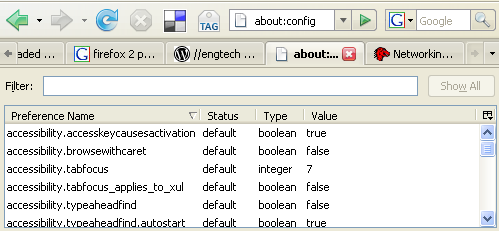
#1: about:config

Type “about:config” into your address bar to access the hidden configuration options for Firefox.

firefox-memory-leak.png

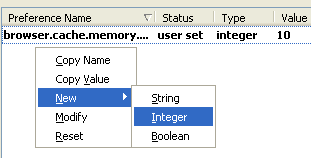
#2: browser.cache.memory.capacity

Controls how much memory is used to cache pages.

Right click on the page and choose New then Integer and create an integer called browser.cache.memory.capacity and set it to a low number. This controls how many kilobytes of memory are used for the browser’s cache.

NOTE: number in screenshot is too small. Aim for 80% of whatever the default is.

firefox-memory-leak3.png

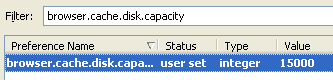
#3: browser.cache.disk.capacity

Controls how much disk space is used to cache pages in kilobytes.

Set browser.cache.disk.capacity to between 5000 or 15000.

128MB to 512M -> 5000.
512BM to 1GB of RAM -> use 15000

firefox-memory-leak6.png

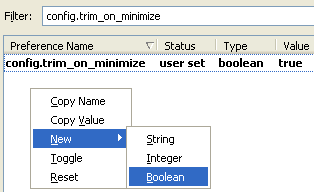
#4: config.trim_on_minimize (optional)

Configure Firefox to swap memory to disk when minimized. This will make Firefox less responsive if you minimize/maximize a lot, but it is good if you need to free memory while multi-tasking to other applications.

Right click on the page and choose New then Boolean and create a boolean called config.trim_on_minimize and set it to true. Now when you minimize the window it will free up memory.

firefox-memory-leak4.png

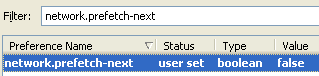
#5: network.prefetch-next

Network link prefetch will download all pages with the rel=”prefetch” tag. This uses up more memory than you would otherwise think.

Set network.prefetch-next to false.

firefox-memory-leak2.png

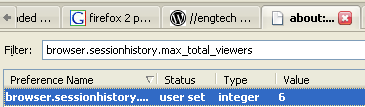
#6: browser.sessionhistory.max_total_viewers

This controls how many pages of history are kept in the back/forward buttons. Lower the value to something acceptable. If you do not use back/forward often then you can set this very low.
Set browser.sessionhistory.max_total_viewers to a low number.

firefox-memory-leak5.png


Once you've done this you should notice a speed improvement on your PC when
using Firefox.

Linux check memory usage:

Linux comes with different command to check memory usage. free command displays the total amount of free and used physical and swap memory in the system, as well as the buffers used by the kernel.

vmstat command reports information about processes, memory, paging, block IO, traps, and cpu activity.

Then you can use top command which provides a dynamic real-time view of a running system. It can display system summary information as well as a list of tasks currently being managed by the Linux kernel.

free command

Display free memory size in MB:

$ free -m

Output:

             total       used       free     shared    buffers     cached
Mem: 750 625 125 0 35 335
-/+ buffers/cache: 254 496
Swap: 956 0 956
Displays a line containing the totals memory in MB:


$ free -t -m

Output:

       total       used       free     shared    buffers     cached
Mem: 750 625 125 0 35 335
-/+ buffers/cache: 253 496
Swap: 956 0 956
Total: 1707 625 1082

vmstat command

Type vmstat command at shell prompt:


$ vmstat

Output:

procs -----------memory---------- ---swap-- -----io---- --system-- ----cpu----
r b swpd free buff cache si so bi bo in cs us sy id wa
1 0 0 131620 35432 341496 0 0 42 82 737 1364 15 3 81 1

top command

Type top command at shell prompt:

$ top

To exit from top command type q key.

Read man page of free, vmstat, top command for complete information.